


Hybrid work is great until you arrive at the office and can’t find a desk, or the colleague you came in to see is working from home. Microsoft Places takes the guesswork out of those days.
We recently rolled it out for a mid-sized professional association client in Melbourne. Here’s what we learned along the way.
What is Microsoft Places?
Microsoft Places is a workplace app within Microsoft 365 that helps people plan their time in the office. Staff can see who’s coming in on which day, book a desk or meeting room, and let colleagues know where they’re working. It works the same way in Teams, Outlook and the web, so there’s nothing new to hunt for.
For facilities and IT teams, Places also shows how the office is really being used.
Why this professional association client chose it
This client has 46 hot desks and wanted to understand how often each one is used. Places reports on occupancy, but not desk-by-desk out of the box. Our team started with a solution using Microsoft Entra sign-in data to fill that gap. Once our client saw what was possible, they decided to bring in the full Microsoft Places experience.
Booking a desk in a few clicks
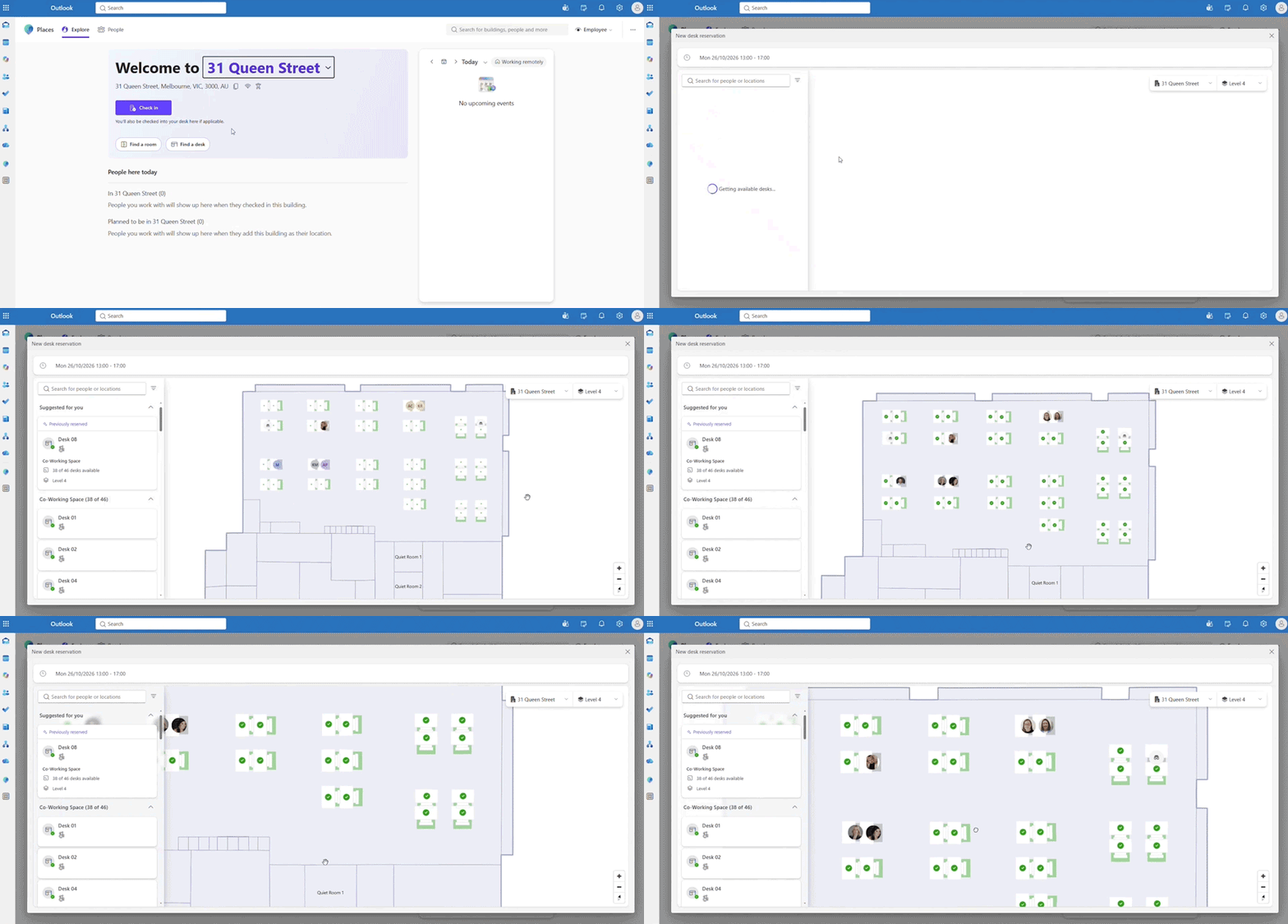
From Outlook or Teams, staff select Find a Desk and see a floor plan of their own office. They can sit near a teammate, grab a quiet corner or claim a spot by the window. Bookings are approved automatically, and a confirmation lands in their inbox.
The floor plan is built from the office’s existing layout. We imported it using a mapping tool (free for a single floor) and added the walls and windows, so it looks like the real space. Staff avatars appear on the map, which makes it easy to spot a friendly face.
Meeting rooms work the same way. Staff can filter by size and book the one that fits, and our client added a few single-person quiet rooms with short booking windows.
Desks that look after themselves
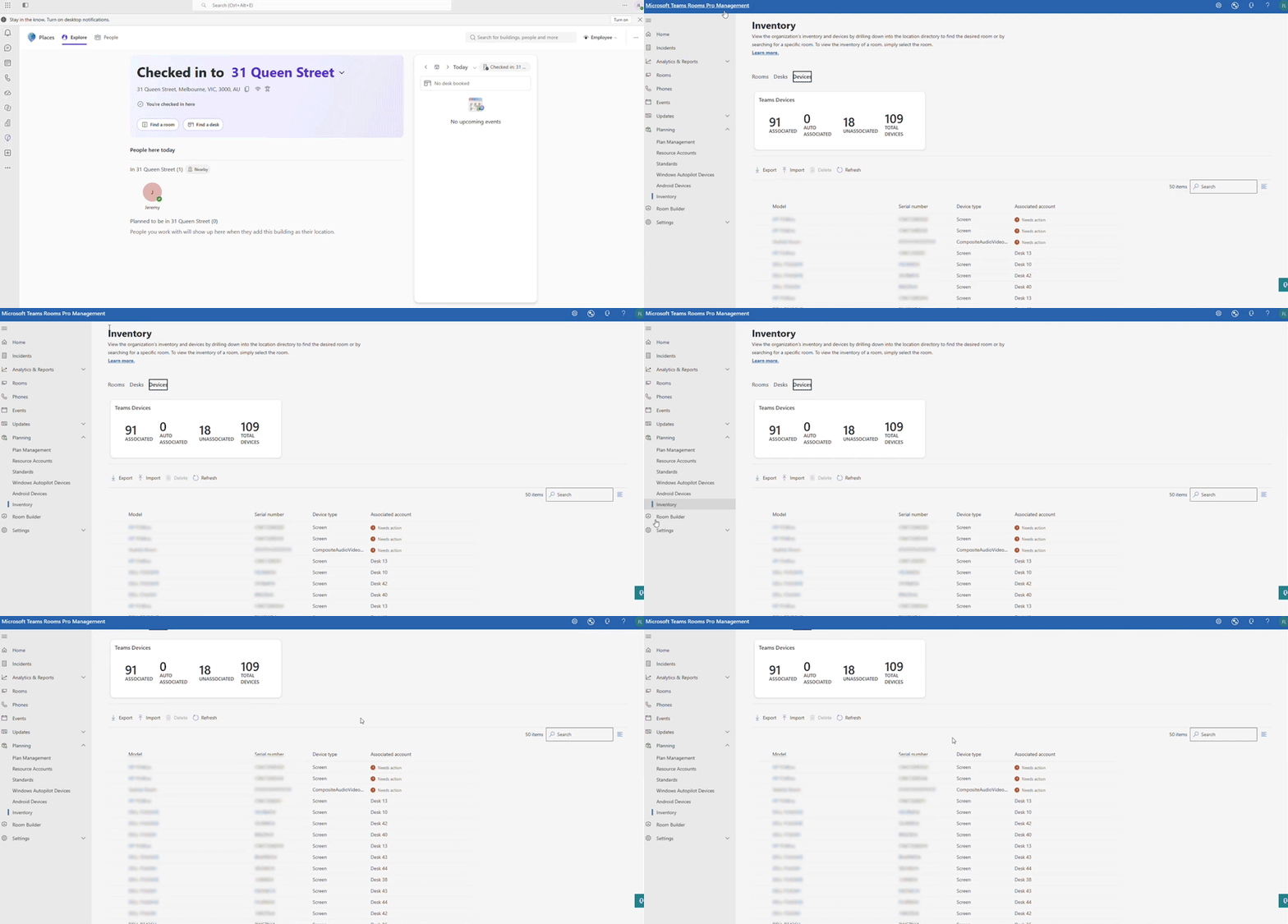
Everyone has had a colleague book a desk and never show up. With auto-release, an unclaimed desk returns to the pool so someone else can use it.
Check-in can be automatic too. When someone plugs into a monitor or docking station, Places recognises which desk they’re at. Behind the scenes, this uses Teams Rooms Pro Management and a Microsoft PowerShell script that records each desk’s peripherals.
Worth knowing: auto-release looks for you at the start of your booking. Once you’ve checked in, the desk stays yours even if you step away for coffee.
Seeing how your office is used
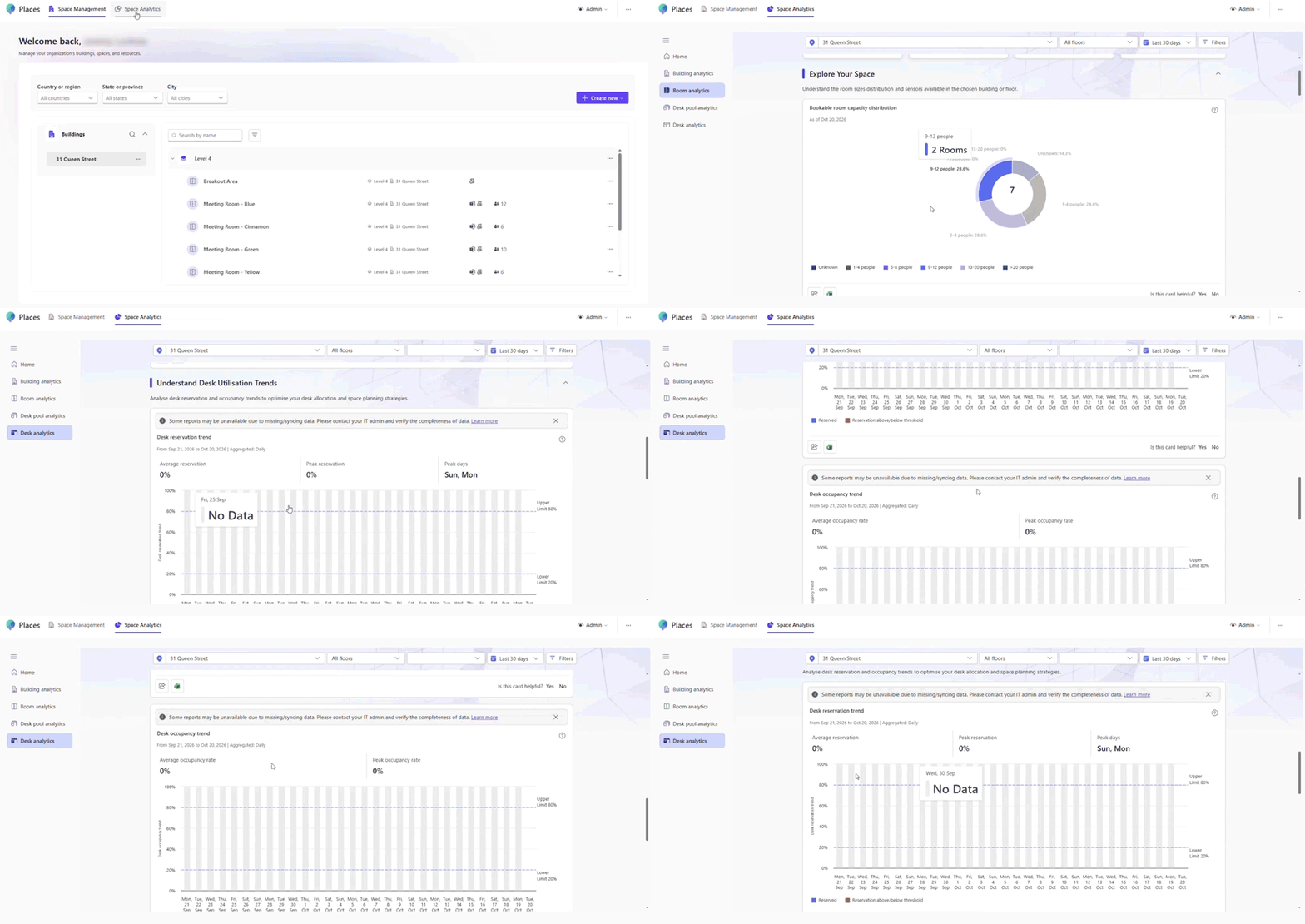
Admins get space analytics that show occupancy and trends over time. If the office is quiet on certain days, that’s useful information. It might mean you can downsize, share space with another team or even offer it to others.
What you need to get started
Most people get the core Places experience with any of these Microsoft 365 licences:
- Microsoft 365 Business Basic, Business Standard and Business Premium.
- Microsoft 365 E1, E3 and E5.
- Office 365 E1, E3 and E5.
- Microsoft 365 Education A1, A3 and A5.
- Microsoft 365 F1 and F3.
- Microsoft Teams Enterprise and Teams Essentials licences.
Booking individual desks, auto-release, and space analytics need a licence on the space itself, called Teams Shared Space.
One licence covers four desks, so 40 desks need 10 licences. It’s a simple sum, and we’ve seen organisations learn it the hard way, so it’s worth planning up front.
How long does it take?
For a single floor in a tidy tenant, it can take around two days. Each extra floor adds roughly a day, mostly for the floor plan. Our client tenant had a partial Places setup from years earlier that nobody remembered, so we cleaned that up first. If you’ve tried Places before, a quick review of your tenant is a good first step.
We also used Copilot to tidy the measurements on the original floor plan PDF, which saved a surprising amount of time. Microsoft’s adoption kit then gave staff ready-made guides, and we can brand these for your organisation.
Is Microsoft Places right for you?
If your people split their time between home and the office, share desks or rooms, or want better data about how space is used, it’s well worth a look. It’s also a great way to show hybrid work is running smoothly.
Want to see it in action? Talk to our team, and we’ll walk you through what Microsoft Places could look like in your office.



Write a Comment